People type “how to organize photo albums” when the pile has stopped being cute. It might be twelve shelf albums nobody can date, a shoebox of loose prints, or a phone gallery with forty thousand thumbnails and zero story.
This guide is about order you can keep—not a perfect museum. It stays brand-neutral on purpose (no app laundry list), then points to TimeFotos and TimeFotos Cloud if you want shared albums and labels that still make sense next year.
If your bigger question is where files should live for backup and safety, pair this with where to save photos and documents—that article is the “vault and copies” layer; this one is the “what do I call the album” layer.
Decide what “album” means for you this month
Physical albums have pages, spines, and dust. Digital albums are usually collections that point at files—same photo can appear in more than one story if your app works that way.
Hybrid is normal: scan or reprint a few key pages, keep the rest in a box, stop pretending you will unify the universe in one Saturday.
Pick one battlefield for the next two weeks: last summer’s trip, one kid’s school years, or “everything loose in the red bin.” Momentum beats a master plan you abandon at step nine.
Pick one spine: time, person, or event (not all three at once)
Chronological works when you mostly want a timeline—great for “what year was the lake house” questions.
By person works when the same years belong to different stories (three kids, three arcs).
By event works when weddings, moves, and graduations are the anchors and the in-between months are filler.
Mixing spines across the same shelf is how you get five albums that each say “misc” in a nicer font. Across the house is fine: Grandma’s box by decade, your phone by trip—just label the spine like you mean it.
The boring naming rule that saves Thanksgiving arguments
On paper, sticky notes, digital folders—whatever you use—prefer boring:
2024-07-Maine-coast beats Summer fun!!!!
2018-05-Ash-grad-party beats Camera roll dump 47
If you are staring at decades of prints and guessing dates, approximate honestly: ~1998-2002-college is still a win over an anonymous blue album.
Cull like a human, not a robot
You do not owe posterity sixteen identical bursts of the same sunset. Keep one strong frame, delete or set aside the rest, and do not narrate your guilt while you do it.
Blurry beyond rescue can go. Duplicates—keep the sharper face, not both. Screenshots of texts mixed into birthday photos deserve their own “admin” album or folder so real moments stay scrollable.
“Curate favorites first” is not fluff. It is how you finish something instead of sorting infinity.
Physical albums: protect, label, stop perfecting the past
Loose photos like company: a clear box you can read through, one index card inside the lid (who / where / rough years), and a pencil that will not smear on backs if you write lightly.
Old magnetic albums that stick to the prints are a migration project, not a shame spiral—one evening, one album, copy or scan what matters, then store the originals flat out of the sun.
Archival supplies help long-term paper; you do not need a shopping spree to start—dry, labeled, off the basement floor beats acid-free perfection that never ships.
Digital albums: folders, albums, and the “why can’t I find it?” fix
Every device handles this slightly differently, but the pattern repeats:
Folders (or the equivalent) hold containers. Albums (or smart collections) hold stories. If your list of albums is longer than your grocery list, you have a taxonomy problem, not a motivation problem.
Shrink the top level to a handful of buckets—Family, House, Work proof, Scans—then nest under those. Search on modern phones is good for places and dates; albums are good for “the story we show relatives.”
If you are wondering how to organize photos on your phone in plain English: delete aggressively in-camera, move keepers into a few dated albums weekly, and avoid one giant “everything” bucket unless you enjoy scrolling as a hobby.
“Thirty years of photos” is a series, not a season finale
Treat legacy archives like cable TV seasons: one year per month of real life, or one box per month if physical.
Celebrate small closes—“1999 is labeled and boxed”—so the project does not need emotional closure to have logistical closure.
Where TimeFotos fits when albums need a shared address
TimeFotos is built for people who already share a place—neighborhood, team, family group—when photos are part of life, not a private pile nobody opens.
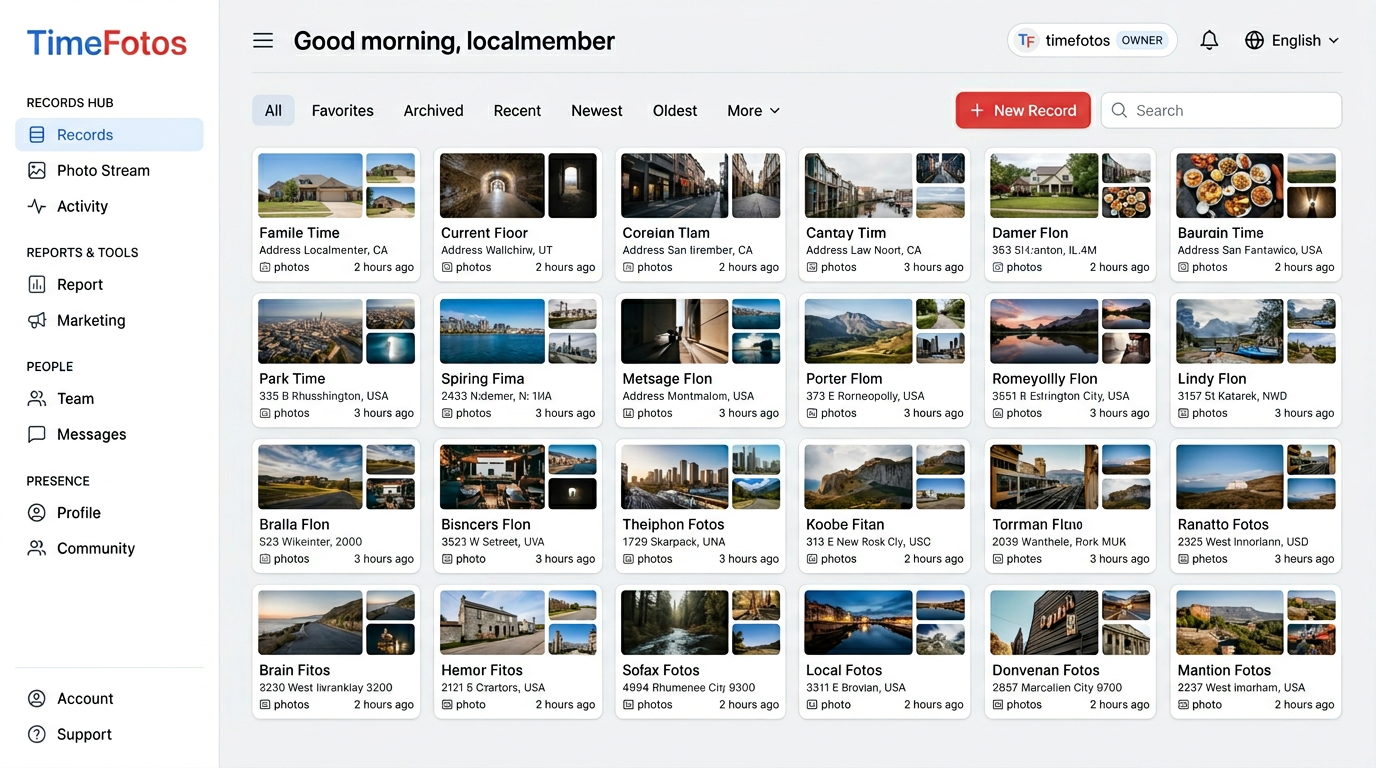
TimeFotos Cloud helps when albums need backup and structure beyond the phone: records and project-style albums, labels that explain why a photo mattered, and sharing that does not mean exporting your whole camera roll every time someone asks for one set.
If your household is deciding how to organize family photos across mixed phones, the habits above still apply—one spine, boring names, small finishes—and Cloud is optional glue when everyone needs the same thread.
Peek at TimeFotos Cloud when you want the workspace details.
A thirty-minute win you can do tonight
Pick one album or one digital collection. Rename it with date + topic. Remove ten obvious duplicates. Add one sentence on an index card or in the album description: who was there, what mattered.
You will not fix thirty years before bed. You will stop the week where every album is still “to sort later”—and that is what most people meant when they typed how to organize photo albums in the first place.